
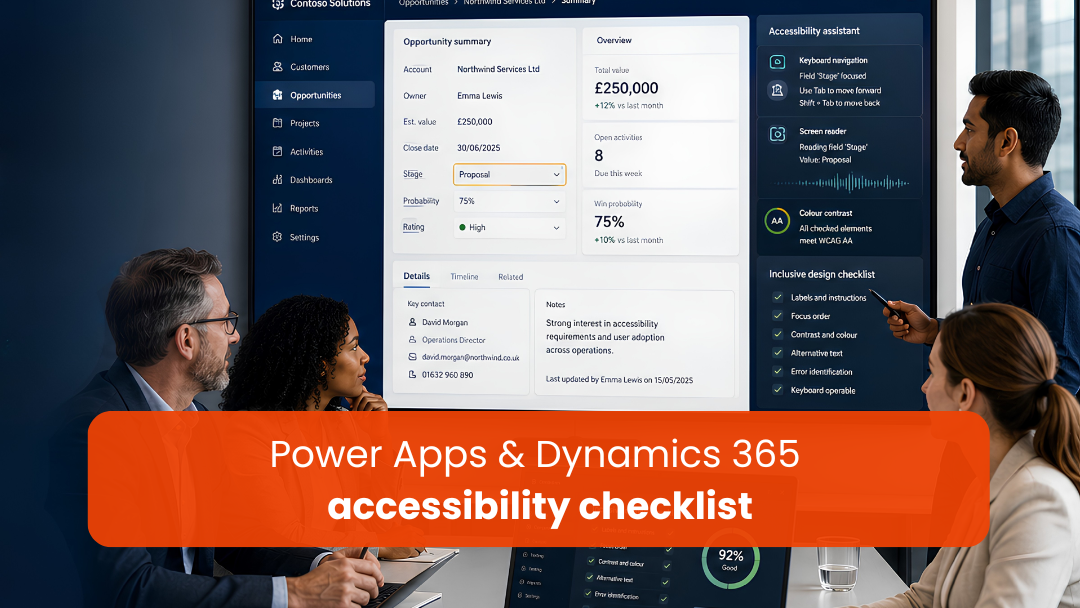

For many enterprise teams, accessibility still gets discussed too late.
The app is already built.
The forms are already configured.
The dashboards are already approved.
The workflow is already live.
Then someone asks: can everyone actually use this?
That is the wrong moment to discover accessibility gaps.
On 21 May 2026, Global Accessibility Awareness Day puts digital access and inclusion back in focus. The purpose of GAAD is to get people talking, thinking, and learning about digital access and inclusion, especially for people with disabilities and impairments. In the UK, Digital Accessibility Week 2026 is also focused on designing, developing, and delivering accessible digital services.
For organisations using Microsoft business applications, this is the right time to review accessibility in Power Apps and Dynamics 365 accessibility more seriously.
Because accessibility is not only about meeting a standard.
It is about whether employees, customers, service teams, finance users, sales teams, operations managers, and frontline workers can use business systems with confidence.
When enterprise applications are hard to read, hard to navigate, hard to understand, or impossible to use without a mouse, accessibility becomes a productivity issue. It becomes an adoption issue. And in some cases, it becomes a risk issue.
That is why accessibility should be treated as part of enterprise application quality.
Why Accessibility Matters in Enterprise Apps
Enterprise applications are not optional tools for many users. They are where work happens.
A sales user updates an opportunity in Dynamics 365.
A field worker submits a site update through Power Apps.
A finance team reviews approvals.
A service agent handles customer information.
A manager checks dashboards before making a decision.
If these systems are not accessible, people are not just inconvenienced. They may be blocked from doing their work properly.
The World Wide Web Consortium explains that WCAG 2.2 covers a wide range of recommendations for making web content more accessible, including support for people with visual, auditory, physical, speech, cognitive, language, learning, and neurological disabilities. W3C also notes that following accessibility guidelines often improves usability for users in general.
That point matters for business applications.
Accessible design helps users who rely on assistive technologies. But it also helps users who are tired, working on smaller screens, using touch devices, dealing with temporary injuries, working in poor lighting, or navigating complex workflows under time pressure.
So the business case is simple:
Accessible apps are usually better apps.
Accessibility in Power Apps: What Microsoft Already Emphasises
Microsoft’s guidance for accessible canvas apps is clear: accessible apps allow users with vision, hearing, and other impairments to use the app successfully, and accessibility improvements increase usability for all users. Microsoft recommends using the Accessibility Checker in Power Apps to review potential issues.
Microsoft’s Power Apps accessibility guidance also calls out practical design areas such as:
→ visible elements and readable text
→ labelled input elements
→ sufficient colour contrast
→ logical screen layout
→ responsive design
→ keyboard-only use
→ screen reader support
→ correct control structure
→ captions and transcripts for multimedia
→ alternative input methods where needed
This is helpful because many accessibility issues in Power Apps are not caused by bad intent. They are caused by small design decisions that go unchecked.
A button looks like text.
An icon has no accessible label.
A colour-coded status has no text cue.
A custom screen has confusing tab order.
A form works visually but not with a screen reader.
These are fixable issues. But they need to be part of the design and review process, not an afterthought.
A Practical Enterprise Checklist for Power Apps and Dynamics 365 Accessibility
1. Start With Accessibility as a Requirement, Not a Final Review
The first mistake is treating accessibility as a testing task only.
Accessibility should be discussed at the beginning of a Power Apps or Dynamics 365 project, along with security, data, workflow, reporting, and user adoption.
Before designing or configuring the app, ask:
→ Who will use this application?
→ Will users access it on desktop, tablet, mobile, or shared devices?
→ Will any users rely on keyboard navigation or screen readers?
→ Are there users with visual, motor, hearing, cognitive, or temporary accessibility needs?
→ Is this app used internally, externally, or by public-sector users?
→ Are there accessibility expectations from procurement, governance, or compliance teams?
For UK organisations, this question becomes especially important where systems support public-sector services, regulated processes, employee portals, or customer-facing digital services.
GOV.UK guidance states that UK public sector websites and mobile apps must be made more accessible by making them perceivable, operable, understandable, and robust, and that meeting WCAG 2.2 AA is part of meeting legal requirements for public sector websites and mobile apps.
Even when a private-sector organisation is not directly under the same public-sector accessibility regulations, accessibility still supports better inclusion, better usability, and stronger governance.
2. Check Colour Contrast Before the Brand Theme Goes Too Far
Colour is one of the fastest ways to make an enterprise app look polished. It is also one of the fastest ways to make it inaccessible.
Microsoft’s Power Apps guidance says text and background should have a contrast ratio of at least 4.5:1, large text should have at least 3:1, and non-text components such as icons and borders should have at least 3:1 contrast with surrounding colours. It also warns against conveying information using colour alone.
This matters for apps that use colours to show:
→ approval status
→ risk level
→ overdue actions
→ priority
→ service status
→ financial exceptions
→ compliance gaps
→ task ownership
A red/green indicator may look clear to some users, but not to everyone.
Better practice:
→ use colour plus text
→ use icons plus labels
→ keep error and success messages clearly written
→ ensure buttons and borders are visible
→ check hover, pressed, focus, and disabled states
→ test the app in light and dark environments where relevant
Accessibility should not weaken the brand. It should make the brand usable.
3. Make Forms Easy to Understand and Complete
Power Apps and Dynamics 365 forms are often where accessibility succeeds or fails.
A form may look clean, but users can still struggle if:
→ field labels are unclear
→ required fields are not obvious
→ error messages are vague
→ sections are too dense
→ related fields are not grouped logically
→ instructions appear only after a mistake
→ the form depends too heavily on placeholders
→ users must enter the same information repeatedly
WCAG 2.2 includes criteria related to accessible authentication and reducing redundant entry, which is especially relevant for form-heavy business applications.
For enterprise apps, the principle is straightforward:
Do not make users work harder than necessary to complete a business process.
Better practice:
→ use clear labels, not internal system terms
→ group related fields together
→ explain why sensitive or unusual data is being requested
→ mark required fields clearly
→ place help text near the relevant field
→ write error messages that explain how to fix the issue
→ avoid asking users to re-enter information the system already knows
→ keep forms as short as the process allows
This improves accessibility and reduces user frustration.
4. Design for Keyboard Navigation
Some users cannot use a mouse. Some users prefer not to. Some enterprise users work faster with keyboard-based navigation.
Microsoft recommends testing Power Apps so they can be used by keyboard only, with or without a screen reader. It also highlights the importance of logical tab order and recommends using TabIndex carefully.
Keyboard accessibility matters in:
→ approval apps
→ service management apps
→ HR and finance workflows
→ data entry screens
→ case management forms
→ field service admin screens
→ dashboards with filters and controls
A practical keyboard check should answer:
→ Can the user move through the screen logically using Tab?
→ Is the current focus clearly visible?
→ Can all interactive controls be reached?
→ Can the user operate dropdowns, buttons, menus, and forms without a mouse?
→ Does the tab order match the visual order?
→ Can the user escape modals, popups, and overlays?
Microsoft’s Accessibility Checker can detect screen-reader and keyboard-related issues, including missing accessible labels and focus issues.
This should be part of every Power Apps review before go-live.
5. Use Accessible Labels Properly
Accessible labels are small details with major impact.
Microsoft’s Power Apps guidance states that input controls should have accessible labels, and that images or icons used as buttons should have accessible labels that describe their purpose. Decorative images should not be read unnecessarily by screen readers.
This is especially important in enterprise apps where icons are commonly used for:
→ edit
→ delete
→ approve
→ reject
→ submit
→ search
→ filter
→ download
→ open record
→ escalate issue
A visual icon may be obvious to one user and meaningless to another.
Better practice:
→ write labels based on action, not appearance
→ use “Submit inspection report” instead of “blue button”
→ use “Open customer record” instead of “arrow icon”
→ avoid vague labels like “click here” or “icon”
→ check whether labels make sense out of visual context
Accessible labels are not only a technical fix. They are part of clear communication.
6. Do Not Rely on Visual Layout Alone
Enterprise users often scan screens visually. Screen reader users experience the same screen differently.
That means structure matters.
Microsoft recommends using the right controls and grouping related content in containers so screen reader users can understand the structure of the app. It also recommends including at least one heading on each screen and using buttons instead of labels for interactive text.
For Power Apps and Dynamics 365, this means:
→ screens should have meaningful names
→ sections should use clear headings
→ controls should match their actual function
→ clickable text should be implemented as an interactive control
→ related fields should be grouped clearly
→ decorative elements should not interrupt screen reader flow
This is where many highly customised apps become difficult to use. The more custom the experience, the more intentional the structure needs to be.
7. Make Dashboards and Charts Understandable Beyond Colour
Dashboards are common in Dynamics 365 and Power Platform environments, but they can create accessibility problems when they rely too heavily on colour, small labels, dense visuals, or unclear chart legends.
An accessible dashboard should help users understand the message without forcing them to decode the design.
Better practice:
→ use clear chart titles
→ avoid colour-only status meaning
→ include labels or values where useful
→ provide summaries for complex visuals
→ avoid tiny text in chart legends
→ keep dashboard filters keyboard-accessible
→ check contrast for chart elements
→ make sure the key insight is written, not only visual
For executive dashboards, this is especially important. Accessibility is not only about whether the dashboard technically loads. It is about whether the user can understand and act on it.
8. Test With Real Assistive Scenarios
Automated tools are useful, but they cannot tell the whole story.
Microsoft’s Accessibility Checker in Power Apps helps identify potential issues and classifies them as errors, warnings, or tips. Errors are issues that can make an app difficult or impossible to use and understand for users with disabilities. Warnings and tips help improve the experience further.
But enterprise teams should go further.
Test scenarios should include:
→ keyboard-only navigation
→ screen reader review
→ zoomed-in view
→ mobile access
→ low-light or high-glare environments
→ users with slower reading speed
→ users completing tasks under time pressure
→ error recovery and form correction
The goal is not just to pass a checklist. The goal is to know whether users can complete real business tasks.
9. Include Accessibility in Governance and Change Control
Accessibility should not disappear after go-live.
Every new screen, field, dashboard, automation, form customisation, or app update can introduce new issues.
That is why accessibility belongs in governance.
For Power Apps and Dynamics 365 teams, this means:
→ accessibility checks before production release
→ accessibility review during major UI changes
→ design standards for colour, labels, forms, and controls
→ reusable accessible components where possible
→ documentation for makers and admins
→ accessibility ownership in the Centre of Excellence or governance model
→ periodic review of high-use apps and critical workflows
Microsoft’s Dynamics 365 accessibility training module highlights that minor changes can make a substantial difference for accessibility and that tools can help determine accessibility issues.
In enterprise environments, those minor changes need a repeatable process.
10. Connect Accessibility With Adoption
Accessibility is often framed as a compliance responsibility. But it is also an adoption lever.
If an app is easier to read, easier to navigate, easier to understand, and easier to complete, more people can use it properly.
That improves:
→ user confidence
→ data quality
→ process completion
→ training efficiency
→ employee experience
→ customer experience
→ long-term platform trust
This is especially important for organisations investing in low-code platforms. Power Apps enables faster app creation, but speed should not come at the cost of usability or inclusion.
The best enterprise apps are not just functional.
They are usable by the widest practical range of users.
Practical Accessibility Checklist for Enterprise Teams
Use this checklist before publishing or updating Power Apps and Dynamics 365 experiences.
Design and Layout
→ Is every screen easy to understand at a glance?
→ Is there a clear heading on each screen?
→ Are related fields grouped logically?
→ Is the layout responsive for different devices and zoom levels?
→ Is the visual order aligned with the reading and tab order?
Colour and Contrast
→ Does text have sufficient contrast against the background?
→ Do icons, borders, and focus indicators have enough contrast?
→ Is colour supported by text, icons, labels, or patterns?
→ Are error, warning, and success states understandable without colour alone?
Forms and Inputs
→ Are all fields clearly labelled?
→ Are required fields easy to identify?
→ Are error messages specific and helpful?
→ Is repeated data entry avoided where possible?
→ Are instructions placed close to the relevant field?
Keyboard and Focus
→ Can the full process be completed without a mouse?
→ Is the focus state visible at all times?
→ Does tab order follow a logical sequence?
→ Can users access and exit popups, menus, and modals?
→ Are all interactive controls reachable by keyboard?
Screen Reader Support
→ Do buttons and icons have meaningful accessible labels?
→ Are decorative images hidden from assistive technologies where appropriate?
→ Are screen names and headings useful?
→ Are dynamic changes announced where needed?
→ Are controls used according to their intended purpose?
Dashboards and Reports
→ Are charts supported by text summaries or clear labels?
→ Are legends readable?
→ Do filters and controls work with keyboard navigation?
→ Is the key insight understandable without relying only on colour?
→ Are dashboard layouts readable on different screens?
Governance
→ Is accessibility checked before go-live?
→ Is accessibility included in release review?
→ Are makers trained on accessible design basics?
→ Are reusable components accessible by default?
→ Is there a process to fix accessibility feedback after release?
Final Thought
Accessibility in Power Apps and Dynamics 365 is not a cosmetic detail.
It is part of enterprise application quality.
It affects whether people can complete tasks, trust the system, adopt the process, and use business applications without unnecessary barriers.
GAAD 2026 is a useful reminder, but accessibility should not be a once-a-year conversation. It should be part of how enterprise apps are planned, designed, tested, governed, and improved.
For UK organisations, the direction is clear. Digital accessibility is no longer only a specialist topic. It is relevant to product owners, developers, admins, testers, service owners, compliance teams, and business leaders.
The practical step is simple: review the apps your teams already depend on.
Start with the screens people use every day.
Check the forms that carry critical data.
Review the dashboards leaders rely on.
Test keyboard navigation.
Run the Accessibility Checker.
Listen to users who experience barriers.
Because inclusive enterprise apps do not happen by accident.
They are designed, tested, governed, and improved with intention.

FAQ
What is accessibility in Power Apps?
Accessibility in Power Apps means designing canvas apps so users with different visual, hearing, motor, cognitive, or temporary needs can use the app successfully. This includes readable layouts, sufficient colour contrast, keyboard navigation, screen reader support, clear labels, and accessible controls.
Why is accessibility important in Dynamics 365?
Dynamics 365 is often used for core business processes such as sales, service, operations, finance, and customer management. If the interface is difficult to read, navigate, or understand, users may struggle to complete work accurately. Accessibility improves usability, inclusion, adoption, and business process quality.
How can I check accessibility in Power Apps?
Power Apps includes an Accessibility Checker that helps identify potential issues such as missing accessible labels, keyboard navigation problems, focus issues, missing captions, and screen reader concerns. Microsoft recommends using it to review canvas apps before release.
What are common accessibility issues in enterprise apps?
Common issues include poor colour contrast, missing labels, confusing form layouts, unclear error messages, keyboard navigation gaps, invisible focus states, colour-only status indicators, inaccessible charts, and custom controls that do not work well with assistive technologies.
What accessibility standard should UK organisations consider?
For UK public sector websites and mobile apps, GOV.UK guidance references WCAG 2.2 AA as part of meeting accessibility requirements. Private-sector organisations may not always be under the same specific public-sector regulation, but WCAG 2.2 remains a practical benchmark for improving digital accessibility